My introduction in html code
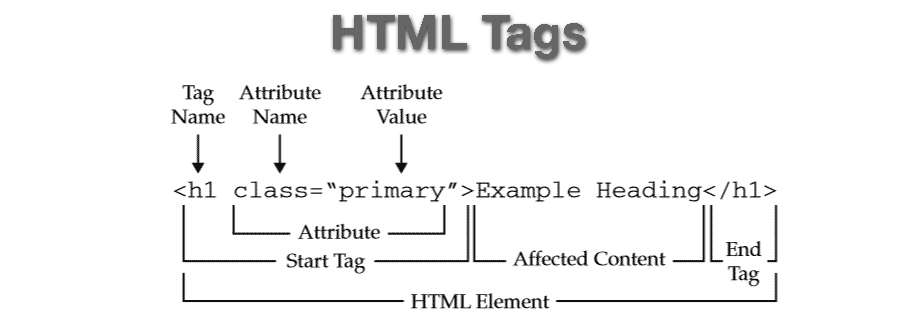
Tag vs Element
Elements" and "tags" are terms that are widely confused. HTML documents contain tags, but do not contain the elements. The elements are only generated after the parsing step, from these tags. Source: wikipedia > HTML_element
An HTML element is defined by a starting tag. If the element contains other content, it ends with a closing tag.
For example <p> is starting tag of a paragraph and </p> is closing tag of the same paragraph but <p>This is paragraph</p> is a paragraph element.
Today my html work
1.Make an introduction page with html tags (heading, p, br, hr, img) you may use" b, i u". if you want .also add link to your any online profile
process of this code:
Certainly! Here are the steps to create an introduction page using HTML tags:
Decide on Content: Determine what information you want to include on your introduction page, such as your name, a brief description about yourself, your interests, and perhaps a photo.
Choose HTML Tags: Select appropriate HTML tags to structure your content. Commonly used tags include
<header>,<h1>,<p>,<br>,<hr>,<img>,<b>,<i>,<u>, and<a>.Create HTML Skeleton: Begin by setting up the basic structure of your HTML document using the
<!DOCTYPE html>declaration. Define the<html>,<head>, and<body>sections.Header Section: Inside the
<body>section, create a<header>element to contain the main heading of your page using the<h1>tag.Main Content: Use
<main>to encapsulate the main content of your page. Divide your content into sections using<section>tags. Inside each section, include relevant information using appropriate tags like<p>, , ,<b>,<i>,<u>, and<img>.Photo: If you want to include a photo, use the
<img>tag and provide the path to the image file in thesrcattribute. Make sure the image file is accessible from your HTML document.Footer Section: Create a
<footer>section to include any additional information or links. You can use<hr>to add a horizontal line for visual separation. Use<p>for text content and<a>for adding a link to your online profile.<!DOCTYPE html> <html lang="en"> <head> <meta charset="UTF-8"> <meta name="viewport" content="width=device-width, initial-scale=1.0"> <title>My introduction</title> </head> <body> <h1>My introduction</h1> <h2>Shaik.Nazma</h2> <hr> <img src="https://centralofsuccess.com/wp-content/uploads/2018/03/Success-is-simple.-Do-whats-right-the-right-way-at-the-right-time..jpg" height="250" width="250"/> <h4>Description:</h4> <p>I'm <a href="">Nazma</a>, a recent<a href="">BTech graduate</a> ! I'm proud to say I finished my degree in just four years.<br> While challenging, it's been an <b>incredibly rewarding experience</b>. I've developed a strong foundation in technical knowledge and a thirst for learning.<br>Mention your area of study: "I recently graduated with a BTech in [<a href="">electronics communication & engineering</a>]]." <br> Highlight a specific achievement: "I particularly enjoyed [<a href="">desiging of improved monitoring system for crack detection on railway tracks</a>] where I honed my skills in [<a href="">improveing my knowledge skills</a> ]." <br> Hint at your future goals: my goal is iam working in <b>good reputed companies,</b> and ,<a href="">i write group exams in my future goal</a>...<br>"I'm currently learning<a href=""><u>java full stack developement</u></a>! This path excites me as it combines <i>front-end design</i> with <i>back-end functionality</i>, allowing me to create<i> well-rounded web applications</i></p> <a href="">https://nagulmera9010.hashnode.dev/</a> </body> </html>9. Test and Validate: Once you've completed your HTML markup, save the file and open it in a web browser to see how it looks. Make any necessary adjustments to formatting or content. Additionally, you can validate your HTML using online validators to ensure it conforms to the HTML standards.

10. Publish: Once you're satisfied with your introduction page, you can publish it online by hosting it on a web server or using platforms like GitHub Pages or Netlify.
By following these steps, you'll be able to create an introduction page using HTML tags.